
Why is it important to back up your reports?
⚠️ Attention! When making any modifications or adjustments to your active surveys (in both Onsite and FollowUp), the data and responses for any deleted questions will be permanently erased from the platform. We recommend following these steps to secure your information before making changes.Backing up your reports is essential because deleting questions in active surveys (Onsite or FollowUp) permanently deletes all associated data. Follow the steps below to export and save your information before making any changes.
Steps to back up your survey information
The backup process must be carried out independently for each report section you wish to keep: Guests, Surveys, and Summary.
Step 1: Filter the desired time period
Before downloading any report, make sure to select the correct date range to include all the data you need to back up.
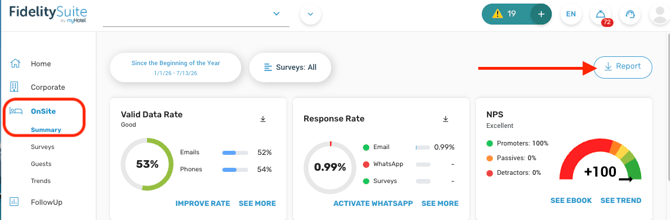
- In the left sidebar menu, go to the Fidelity module and select the corresponding menu option (Onsite or FollowUp).
- Click on the section you want to work on (for example, Guests).
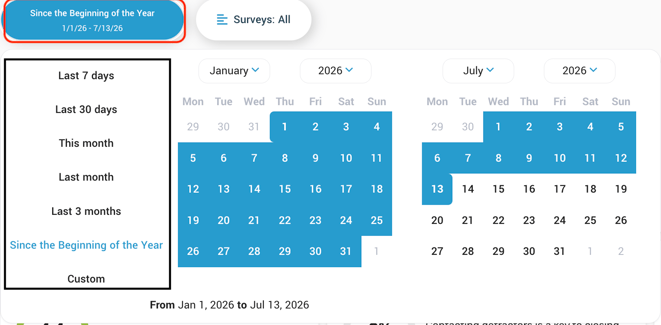
- At the top, click on the date filter (by default, it may say This month).
- Select the time period you want to back up. To save the complete history for the current year, select Since the beginning of the year; for any other date range, select Custom.
Step 2: Export and email the reports
Once the date filter is applied, export the information from the three main screens:
A. Guests Section:
- With the date filter active in the Guests section, click the Report button located in the upper right corner.
- Then, select the Send report by email option.
B. Surveys Section
- Go to the Surveys tab in the internal menu.
- Verify that the date filter remains correctly applied.
- Click on Report in the upper right corner and select Send report by email.
C. Summary Section
- Finally, head over to the Summary section.
- Repeat the action: click on the Report button and select Send report by email.
Next steps
Once you have received the emails with your backed-up reports (or downloaded them), you can safely request survey modifications. You can contact your account executive or submit a ticket to support: