
Alerts configuration
This feature is available for all user profiles, with the exception of the Financial profile.
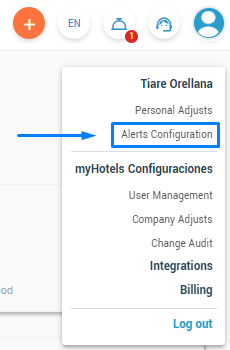
1. In the Alerts tab, you can configure three notification channels: email, web (bell icon), and the myHotel app.
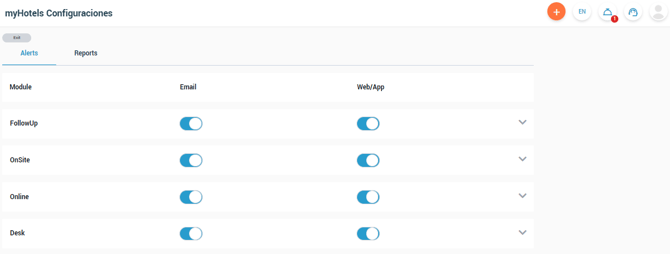
2. To activate an alert, click the toggle switch. It will turn blue when enable. You can activate all alerts per module:
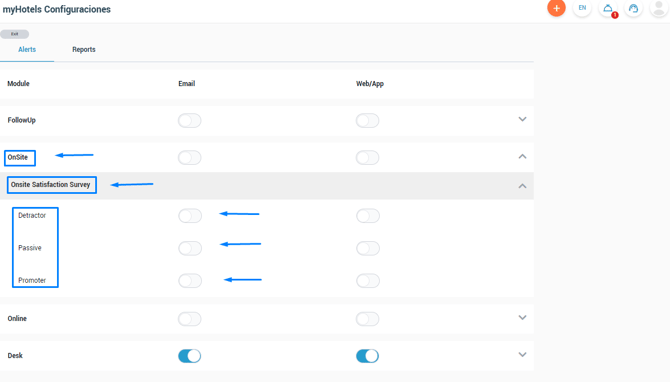
3. If you wish, you can also configure the alerts to only receive them if the guest is a Promoter, Passive or Detractor.
4. In Onsite or FollowUp, select the survey to display the toggle buttons for activating alerts by guest type.
Guest types are based on the NPS classification: Promoter (score 9–10), Passive (score 7–8), and Detractor (score 0–6).
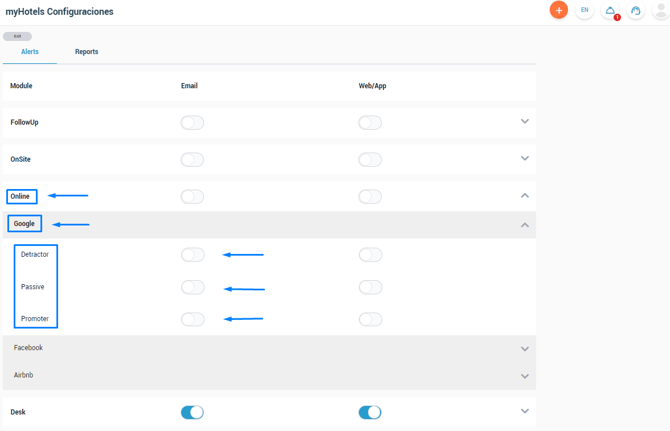
5. For Online, you must enable the alerts you want for each specific OTA:
Report configuration
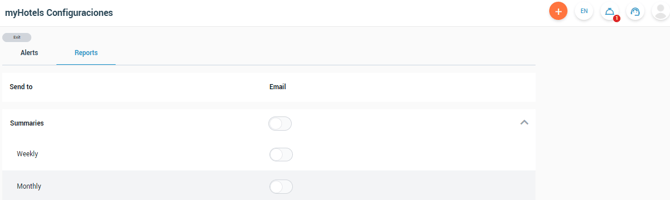
In Fidelity you can also activate the sending of weekly and monthly reports, these reports will give you visibility of the different modules active in your hotel.
To activate the reports, just choose the Reports tab in the Alerts Configuration.
If you have your alerts enabled but are not receiving them in your inbox or spam folder, please write to us at support@myhotel.cl