This feature is exclusively available to users with the Administrator role. There is no need to contact support, as administrators can process the deletion directly.
If your hotel receives a survey that was not answered by the actual guest, a survey where the guest reported making a mistake, or a public survey lacking sufficient information to identify the user, you can delete it directly from the platform to protect your metrics.
Steps to delete a survey:
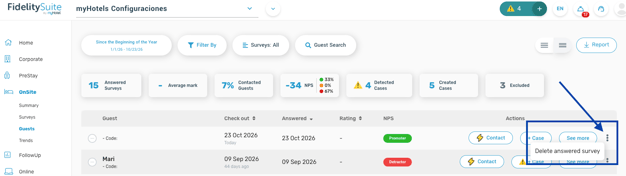
- Go to the Guests section.
- In the survey list, locate the response you want to remove and click on the three dots on the right side.
- Click the three dots and select Delete answered survey.
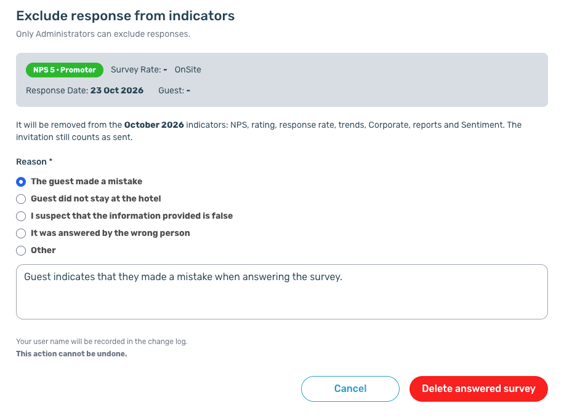
- A pop-up window will appear confirming that the response will be excluded from the metrics. Select or state the reason for deletion.
Key considerations:
- Time limit: Only surveys answered within the last 30 days can be deleted.
- Exclusion metric: Once removed, the survey will no longer count toward main performance metrics and will move to the Excluded indicator in the Guests section.
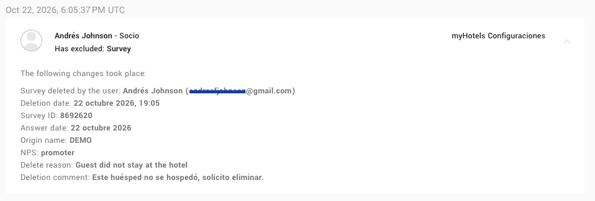
- Traceability: Every time a survey is removed, the system logs the user who performed the action.
How to check who deleted a survey in your hotel?
To review the deletion history for your hotel:
- Go to the Change Audit section.
- Filter by the action Delete.
- A list of all deleted surveys will be displayed, including details such as date, survey ID, source name, NPS score, reason, comments, and the user who performed the action.