Please note that the Sentiment Index has been calculated starting from January 1, 2026. If you need to consult previous periods, you can access the previous version (Semantic) using the yellow banner at the top of the screen.
In the Sentiment module, comments are analyzed based on three main categories:
- Topic: Indicates what the review mentioned (e.g., general staff, bar, overall experience, pool, etc.).
- Attribute: A cross-cutting category that indicates what specific aspect is being evaluated. The same attribute can apply across different Topics and Areas. For instance, the "Size" attribute applies to topics like Room, Restaurant, or Pool, as well as areas like Infrastructure or Restaurant Service.
- Area: Specifies which hotel department or operational area is responsible for the mention. It is assigned following strict guidelines designed for this tool based on Topics and Attributes.
What will you find in the Summary section?
At the top of the page, you can select the time period to analyze and apply relevant filters, such as:
- Product
- OTAs (Booking channels)
- Intensity
Below are the main indicators available:
- Sentiment Index: Shows the percentage of positive mentions received during the period, calculated out of the total number of positive and negative mentions.
- Top strengths: Highlights the Attribute that received the highest number of positive comments during the selected period.
- Lowed rated: Highlights the Attribute that received the highest number of negative comments during the selected period.
- Biggest Improvement: Displays the Attribute with the greatest increase in positive mentions compared to the previous period.
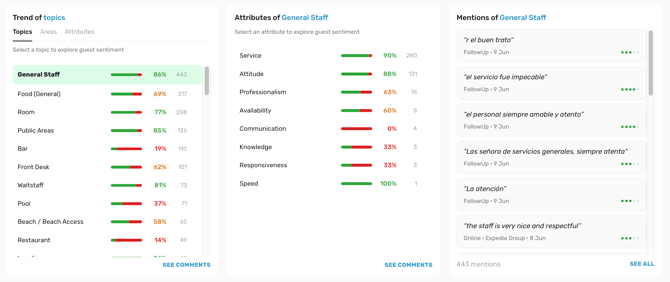
- Trends: Shows the period's performance across Topics, Areas, and Attributes.

How the Trends section works
The Trends block allows you to dynamically explore data based on your selection:
- If you select a Topic: The adjacent block will display the associated Attributes along with their corresponding mentions.
- If you select an Area: You can choose between Attributes or Topics in the next block. A third block will then display the mentions linked to your selection.
- If you select an Attribute: You can choose between Topics or Areas in the next block. A third block will display the mentions associated with the selected Topic or Area.
💡 Tip: All indicators allow you to click through to view the associated comments directly.